
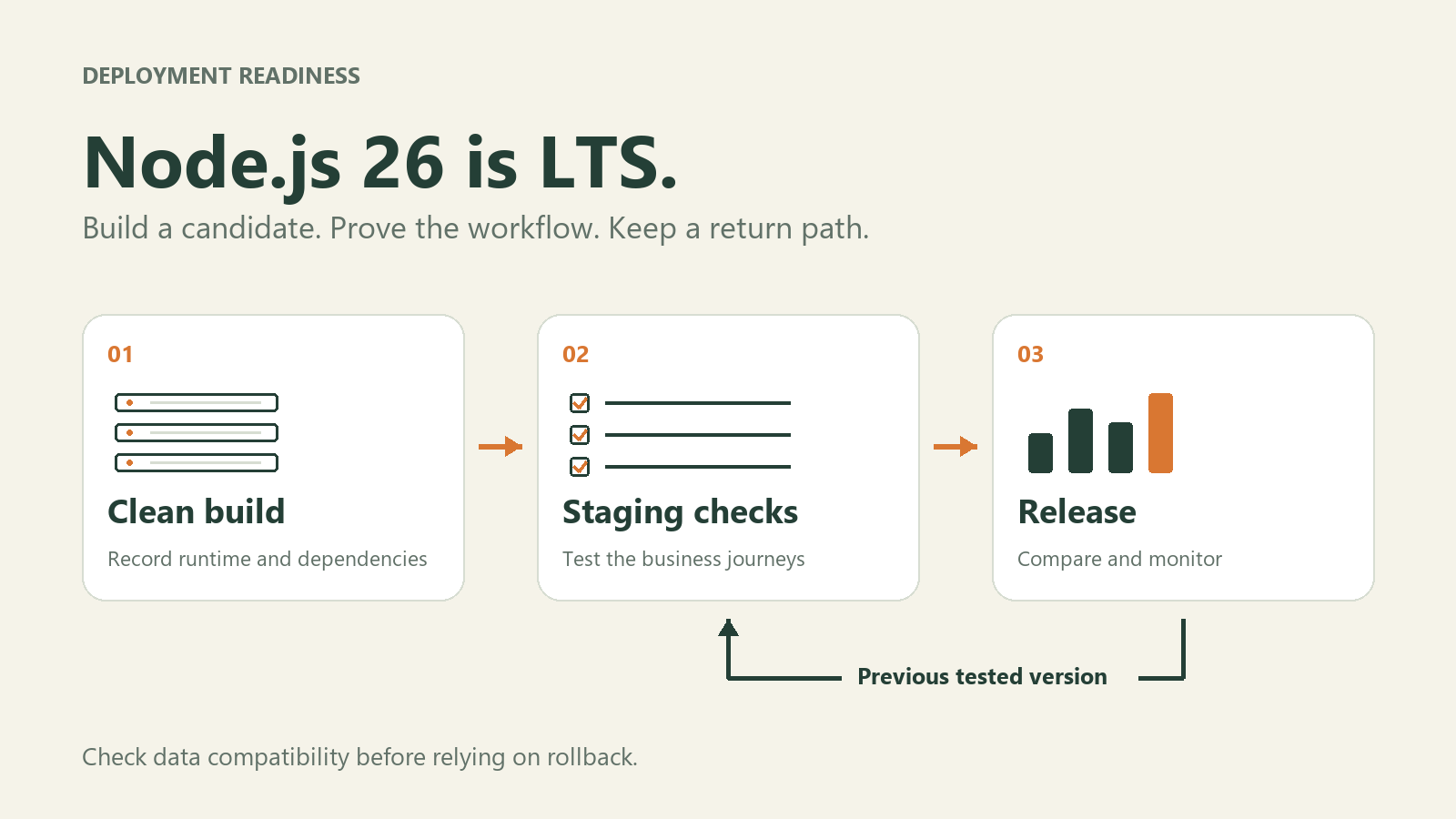
Node.js 26 entered Long Term Support on 28 October 2026 with the release of 26.13.0, “Lithium”. The project says the line will receive updates through the end of April 2029. That gives teams running Node applications a new supported target for their deployment plans. Read the official release announcement.
For a business website, API or background worker on a VPS, the useful next step is to identify which application needs an upgrade and prove that it works in the environment where it will run. Here is a practical way to make that decision.
First, separate a point update from a major migration
The 26.13.0 announcement says its changes from 26.12.1 are limited to metadata reflecting LTS status. Moving from an earlier major version, such as 22 or 24, crosses a much larger set of changes.
As of 30 October, the official releases page lists 22, 24 and 26 as LTS lines. Node.js recommends Active LTS or Maintenance LTS for production. Version 20 is listed as end of life, while 27 is an Alpha release.
An existing application on a supported line can have a planned migration alongside routine patching. An application on an end-of-life line needs a supported destination. Neither decision requires changing every application on a VPS at once.
1. Find the runtime that actually runs each job
Make a short inventory of the website process, API, queue workers, scheduled tasks and build jobs. Record the Node version used by each, its operating system or container base, and the person responsible for it.
A version printed in your interactive terminal may differ from the version used by a service manager, a container or a scheduled job. Check from the environment that starts the workload.
For example, an agency might build a site in CI, serve its API in a container and run an overnight export directly on a VPS. Treat those as three checks. A successful website build says little about whether the overnight job starts correctly.
2. Build a fresh candidate with the same dependency lock
Start with a separate branch and a clean build environment. Record the exact Node and package-manager versions you tested, then make CI and the intended runtime agree with that choice.
For an npm project with a committed lockfile, npm ci provides a clean install: it requires a lockfile, rejects a mismatch with package.json and does not rewrite those files. Use the project's documented install flags. If compatibility requires dependency changes, review and commit them rather than silently generating a different dependency tree during deployment.
Check framework support and packages that load native code. Some addons tied to Node or V8 APIs may need updates or recompilation across major releases; the Node addon documentation explains that compatibility boundary. Check the packages you use rather than assuming every native addon behaves alike.
There is also a concrete Linux check in the 26.13.0 announcement: official Linux binaries have linked against libatomic since Node 25, and the library may need separate installation on some distributions. Confirm that the final server or container starts successfully, not just the machine that built it.
3. Test the work that matters to the business
Run automated tests, then exercise the critical paths in a staging environment with test data and sandbox integrations. Choose paths that match the application, such as:
- Signing in and completing a password reset.
- Submitting a form and receiving its test confirmation.
- Uploading a file and processing it in a worker.
- Completing a checkout through a payment sandbox.
- Running a scheduled export and opening its output.
Check the result of the task, including its asynchronous work. A page returning HTTP 200 does not establish that an email was sent or an export finished.
Read the relevant major-release notes too. For example, the Node 26.0.0 notes document removal of http.Server.prototype.writeHeader(). Older application code or dependencies using removed APIs need attention even when the new runtime starts.
4. Compare behaviour and prepare a return path
Run a representative workload against the old and candidate environments. Compare request failures, response times, memory use and worker completion under similar conditions. Record what you measured. A newer runtime alone does not establish a speed improvement for your application.
Keep the previous tested application artifact and runtime available. Decide who can restore them and what evidence would trigger that decision. If the release also changes database schemas or queued-message formats, check that the previous application can still read the resulting data. An old container image cannot undo an incompatible data change.
Where practical, keep a runtime migration separate from unrelated application features and schema changes. That makes the result easier to diagnose.
A release note your team can reuse
Before changing production, fill in this small record:
- Scope: application, worker and scheduled jobs affected.
- Candidate: exact runtime, package manager, build and artifact reference.
- Evidence: clean install, tests and business journeys completed.
- Comparison: baseline, candidate results and unresolved differences.
- Recovery: previous artifact, data compatibility, trigger and owner.
Use it with whoever operates the application, whether that is your developer, agency or hosting team. Agree who owns the runtime update and who verifies the business workflows. The LTS announcement supplies a support milestone; this record supplies the evidence for your own release decision.
Release facts checked on 30 October 2026. Recheck the linked official release information when planning a later deployment.